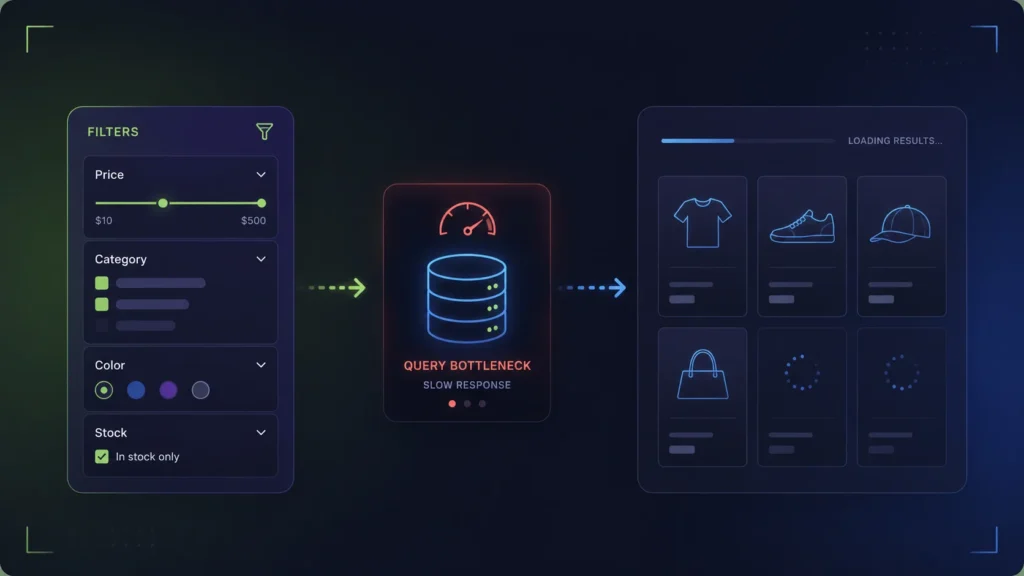
WooCommerce filters slow down your site because every click bypasses your page cache (like WP Rocket) and forces a heavy SQL query on the wp_postmeta table. The only true fix is to stop querying the database per click. By moving the filter logic to the browser using a JSON index (frontend-first filtering), you eliminate AJAX latency and server load entirely.
Why do WooCommerce filters slow down even when your page speed score is green?
If you run your WooCommerce category pages through Google PageSpeed Insights, you might see a healthy score. Your Time To First Byte (TTFB) is under 200ms, your images are optimized, and your caching plugin is doing its job. The shop feels fast.
Then, a customer clicks the “Size: Large” filter. Suddenly, the page hangs for a full second. They click “Color: Blue”, and it hangs again. If this happens during a Black Friday sale with hundreds of concurrent users, your server CPU spikes, PHP workers get exhausted, and the entire checkout flow slows down for everyone.
This is the WooCommerce filter performance paradox: optimizing the initial page load does almost nothing to optimize the filtering experience. To fix slow filters, you have to understand what happens on the server the moment a user interacts with the sidebar.
Why is my WooCommerce shop page so slow when filtering?
If you are searching for a fix to slow WooCommerce filters or high admin-ajax.php CPU usage, you are hitting the architectural limit of WordPress. The slowness is caused by a perfect storm of three factors:
- The Cache Bypass: Caching plugins (like WP Rocket) serve static HTML for the main category page. But when a user clicks a filter, the URL changes (e.g.,
?color=blue&size=large). This unique query string bypasses the page cache, forcing the server to process the request from scratch. - The AJAX Tax: Most filter plugins use AJAX. Every click sends a request to
admin-ajax.phpor a custom REST endpoint. This forces your server to boot up the entire WordPress core just to handle the filter request. - The Database Schema: To find “Blue” and “Large” products, WooCommerce must perform heavy
JOINoperations across thewp_posts,wp_postmeta, andwp_term_relationshipstables. At 5,000+ products, these queries become incredibly slow.
How does WooCommerce store product attributes, and why does it slow down filtering?
To understand why filtering is inherently expensive in WordPress, look at how WooCommerce actually stores attributes — not as neat columns, but as a mix of taxonomies and serialized meta.
Global attributes (e.g. pa_color) use taxonomy terms: values like “blue” live in wp_terms and link to products via wp_term_relationships. Local attributes on a product are stored together in one _product_attributes row in wp_postmeta — a serialized PHP array, not separate indexed fields. Variations add per-variation meta such as attribute_pa_color.
The product itself is a row in wp_posts, but filterable data is scattered across taxonomy JOINs and meta blobs. That is the schema AJAX filter plugins fight on every click.
When a user filters a category for “Blue Shirts in Size L under $50”, WordPress cannot simply look up a single row. It must construct a WP_Query that executes massive SQL JOIN operations across multiple tables to intersect these conditions. It then has to calculate the remaining available counts for all other filters (e.g., discovering that there are now 0 “Red” shirts available in Size L, so the “Red” option should be disabled).
For a catalog of 500 products, MySQL handles this in milliseconds. For a catalog of 15,000 products with complex variations, this query becomes a heavy computational burden.
Why caching plugins fail on filtered URLs
You might think your caching plugin (like WP Rocket or LiteSpeed Cache) will save you. It won’t. Caching plugins work by saving the HTML output of a specific URL. A static category page (/shop/shirts/) is easily cached.
However, when a user applies a filter, the URL changes (e.g., /shop/shirts/?filter_color=blue&filter_size=l). Every unique combination of filters creates a unique query string. Because caching engines cannot predict or store every possible combination, they are configured to bypass the cache whenever query strings are present.
This means every single filter interaction forces WordPress to boot up, load all plugins, connect to the database, execute the heavy SQL joins, and render the HTML from scratch. It is the equivalent of a completely uncached page load, triggered repeatedly by every user.
The AJAX Band-Aid
Most filter plugins use AJAX to prevent a full browser refresh. While this feels smoother to the user, it does not solve the server load. An AJAX request still boots WordPress, bypasses cache, and runs the heavy database queries. It just hides the loading state behind a spinner.
Why scaling your hosting does not fix slow WooCommerce filters
When shop owners encounter slow filters, the instinct is to throw money at the problem by upgrading hosting. More CPU cores, more RAM, more PHP workers.
While a robust server is essential for WooCommerce, scaling hardware to solve inefficient database queries is a losing battle. If an AJAX filter request takes 800ms on a $50/month server, upgrading to a $200/month server might reduce it to 400ms. It is an improvement, but it is not “instant,” and it still doesn’t protect you from concurrent traffic spikes.
To achieve true scale, you must change the architecture, not just the hardware.
There is a second dimension to this problem: concurrency. An AJAX filter request that takes 400ms on a quiet server might take 1,200ms when 50 users browse your shop simultaneously. Each user’s filter click locks database rows and occupies a PHP worker for the duration of the query. Workers queue behind each other, latency compounds, and you end up with a slow site during the exact moments that matter most — promotions, flash sales, and high-traffic days.
Indexed AJAX (used by plugins like FacetWP with its Elasticsearch or flat-table indexer) improves query speed significantly by pre-computing facet counts. But even with an index, every filter click still boots WordPress, routes through PHP, and occupies a worker thread. Concurrency limits remain. The only way to fully escape this ceiling is to move the computation to the browser, where each user’s device runs its own filter logic in parallel with no server involvement.
Which WooCommerce filter architecture performs best at scale?
| Architecture | Server Load per Click | Concurrency Limit | Best For |
|---|---|---|---|
| Native SQL (Default) | Very High | Low (Crashes easily under load) | Small shops (< 1,000 SKUs) |
| Indexed AJAX | Medium (Fast DB, but still boots WP) | Medium (Bound by PHP workers) | Mid-sized shops, complex post types |
| Client-Side Export | Zero (Math happens in browser) | High (Server only serves static files) | Large catalogs, high-traffic sales |
The table above shows the structural trade-offs at a glance, but the real-world difference is sharper than numbers suggest. With Native SQL filtering, a site that handles 30 concurrent shoppers comfortably at 10,000 products can crawl or crash at 30,000 products — not because the server got slower, but because the query complexity grew non-linearly. Indexed AJAX extends the window, but PHP worker saturation remains the hard ceiling during traffic peaks.
Frontend-first filtering breaks this ceiling entirely. Because the browser handles all filter calculations after hydration, your server CPU and PHP worker count become irrelevant to filter speed. A category page serving 500 simultaneous shoppers looks identical to the server as 500 cached static-page requests.
How do you diagnose slow WooCommerce filter performance?
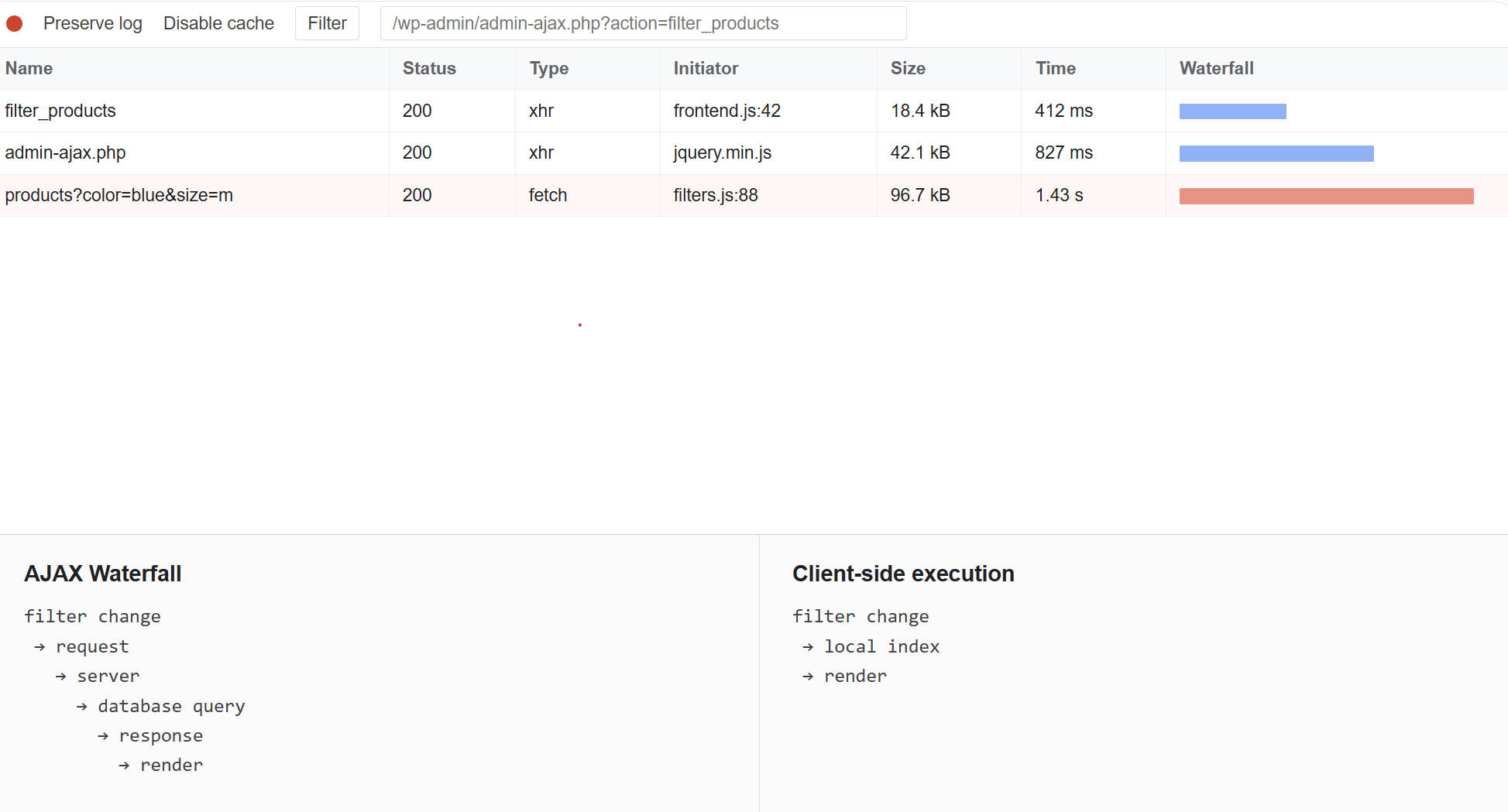
Before changing your filter plugin, confirm that AJAX is actually the bottleneck. Open your browser’s DevTools Network tab, select “XHR”, and click a filter. You should see one or more requests to admin-ajax.php or a REST endpoint like /wp-json/wc/store/products. Note the response time in milliseconds.
A single filter click taking more than 300ms under normal load is a clear sign that your database queries are the bottleneck. If the same click takes 800ms or more during traffic peaks, or if you see requests queuing behind each other, you are hitting the PHP worker limit.
Three metrics to track from your server logs:
- admin-ajax.php response time (P95) — the 95th-percentile request duration. Anything above 500ms needs architectural attention.
- PHP worker saturation — check your hosting panel or
php-fpmlogs. If all workers are busy during browsing (not just checkout), AJAX filters are the likely cause. - Slow query log — enable MySQL’s slow query log (threshold 500ms). Filter-related queries involving
wp_term_relationshipsJOINs will appear there immediately.
If all three metrics show elevated readings during category browsing, the problem is the AJAX architecture itself — not your server configuration. Optimizing queries or adding indexes can reduce execution time by 20–40%, but the structural ceiling stays the same. The only lasting fix is removing the server round-trip from the filter interaction entirely.
How does frontend-first filtering eliminate WooCommerce server load?
If the server is the bottleneck, the logical solution is to stop asking the server to do the math. This is the premise of the Client-Side Export architecture, utilized by InstantFilter.
Instead of querying the database on every click, the plugin scans your catalog in the background and compiles a highly compressed JSON “codebook”. This file contains the relationships between all your products and their attributes.
When a user visits a category page:
- The server delivers the initial HTML (fully cached and SEO-friendly).
- The browser downloads the compressed JSON codebook in the background.
- When the user clicks a filter, the browser’s JavaScript engine calculates the intersections and updates the grid instantly.
Because modern browsers (even on mobile devices) are incredibly fast at processing JSON arrays, the filter interaction takes milliseconds. More importantly, zero requests are sent to your server. Your PHP workers remain free to handle actual checkouts instead of calculating facet counts.
Benefits of Client-Side Filtering
- Immune to traffic spikes: 1,000 users filtering simultaneously puts no more load on your server than 1 user.
- True instant UI: No network latency, no waiting for TTFB.
- Lower hosting costs: You don’t need to over-provision PHP workers just to handle catalog browsing.
Trade-offs to consider
- Initial payload size: The browser must download the JSON export. For massive catalogs (50K+ SKUs), this file can be several hundred kilobytes, slightly delaying the “time to interactive” on slow 3G connections.
- Background indexing: You must rely on background processes (cron jobs or CLI) to keep the JSON export updated when you add new products.
WooCommerce filter performance FAQ
How do slow WooCommerce filters affect Core Web Vitals and SEO?
Google’s Core Web Vitals measure three aspects of page experience: Largest Contentful Paint (LCP), Interaction to Next Paint (INP), and Cumulative Layout Shift (CLS). AJAX filters directly degrade two of them on category pages.
INP (Interaction to Next Paint) measures how fast the page responds after any user interaction — including filter clicks. A 600ms AJAX filter response produces an INP of 600ms or higher, which Google classifies as “Needs Improvement” or “Poor.” Poor INP scores can suppress category page rankings in competitive niches.
CLS (Cumulative Layout Shift) is affected when AJAX filter results load asynchronously and product grid items reflow during render. A grid that jumps while loading filtered results accumulates layout shift that Google penalizes in the Page Experience signal.
Frontend-first filtering avoids both issues. Because the JavaScript filters in-place (swapping display states rather than replacing DOM nodes from an AJAX payload), grid layout remains stable and INP stays under 50ms — which Google classifies as “Good.”
What is the fastest way to fix slow WooCommerce filters on an existing shop?
If you are running an AJAX filter plugin today and want to reduce latency without a full migration, start here:
- Audit your filter sidebar: Reduce the number of filter groups. Each additional facet group multiplies the SQL work. A sidebar with 5 attribute groups is significantly cheaper than one with 15.
- Switch to global attributes where possible: Local (custom) attributes stored in serialized
_product_attributesmeta are harder to index. Global taxonomy-based attributes (pa_color,pa_size) use indexedwp_term_relationshipsrows that MySQL handles more efficiently. - Evaluate an indexed AJAX plugin: If you are on native WP_Query filtering, moving to an indexed AJAX plugin like FacetWP or WooCommerce’s own Product Filters can cut response times by 60–80% at moderate catalog sizes.
- Test frontend-first filtering on staging: For catalogs above 5,000 SKUs, or any store where filter latency directly affects conversion, a frontend-first approach is the only architecture that removes server load entirely. Set up a staging clone and run InstantFilter’s 14-day trial to benchmark the difference before committing.
WooCommerce filter performance is not a hosting problem, a plugin-version problem, or a PHP-memory problem. It is a data-architecture problem. Solving it at the source — by moving filter computation to where it is cheapest — is the only fix that scales.
Keep going
If your WooCommerce filters are slowing down your shop, upgrading your hosting is only a temporary fix. Evaluate your filter architecture and consider moving the computational load to the browser. Looking for the best WooCommerce filter plugin for large catalogs? Use our comparison guide to match architecture, variations, and scale to your store.
- Best WooCommerce filter plugin comparison
- Fix slow filters: wp_postmeta explained
- Stop filters bypassing WP Rocket cache
- Filter 50K products without AJAX load
- InstantFilter vs FacetWP
- How InstantFilter indexing works
Stop paying for AJAX round-trips
Start a 14-day trial of InstantFilter. Clone your site to staging and experience zero-latency filtering.